TOMLAB

This section describes how to install the TOMLAB software. Follow the instructions in the section for your operating system.
For Windows an installer extracts the TOMLAB files and automatically sets the PATH environment variable to point at directories containing dynamic libraries required by some TOMLAB modules. See Section 4.3.1 for more information about the steps.
It is recommended to terminate all instances of MATLAB during the installation to make sure the PATH environment variable is properly set in the MATLAB environment when starting to use TOMLAB. Execute getenv(’path’) in MATLAB to confirm the presence of tomlab/shared.
As the PATH environment variable is set automatically, one can skip Section 5 and go directly to Section 6.
If the installer failed to set the PATH environment variable, go to Section 5 and read about how to do it manually.
Any Matlab sessions that were running during setup must be restarted for the PATH change to be recognized. Alternatively, the entire OS can be restarted.
With Add/Remove Programs from the control panel, remove the TOMLAB Optimization Environment. Make sure that (only) tomlab.lic remains in the installation folder and install the new version in the same location. As defaults in TOMLAB may change over time a backup copy of the old version is recommended.
The software is installed by a self-extracting executable installer, similar to the one used on Windows systems. The files for each operating system can be found in Section 3.
After downloading the installer for your platform and Matlab version, simply execute the tomlab-X-setup.bin file, where X represents your platform and Matlab version. The installer can be run in text mode if no display is available.
Note: Mac OS X users should always execute startup.m when using TOMLAB.
Execute the installer binary by double clicking its icon, or invoke it from a shell:
[user@host:~] ./tomlab-X-setup.bin
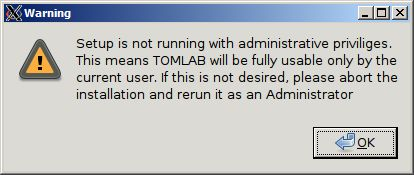
If you are running the installer as a regular user, a warning may be displayed.
Currently this warning can be ignored since a manual step (see Setting environment variables 5) is still required to make TOMLAB fully usable.
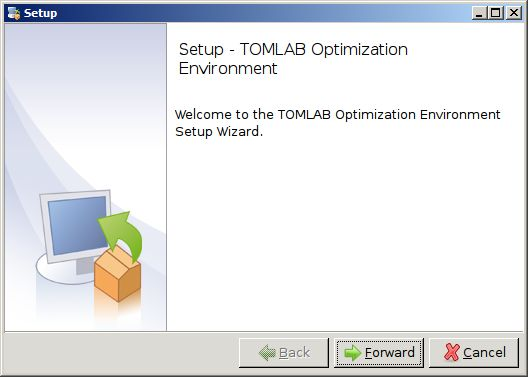
At the welcome screen, simply press Forward.
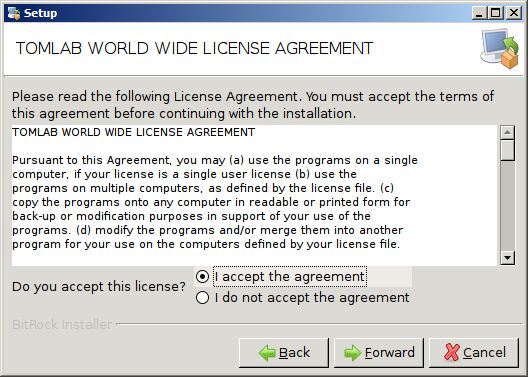
The TOMLAB license agreement will be displayed. Please read it and mark the "I accept the agreement" if you agree to be bound by it. Press Forward.
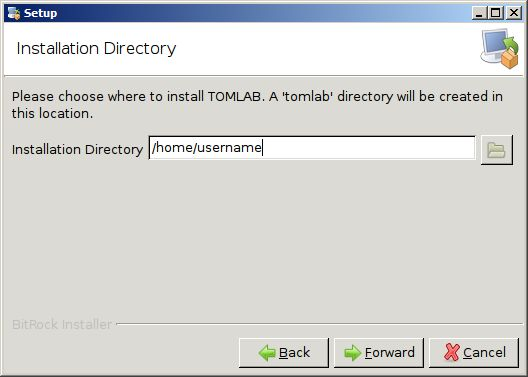
Enter the directory in which to install TOMLAB. Please note that a ’tomlab’ directory will be added to the path you specify here.
The default location for single user installations is in $HOME/tomlab, thus showing as just your home directory.
The default location if installing with super-user privileges is in /opt/tomlab (which will thus show as /opt) in the dialogue.
Press Forward after entering the desired path.
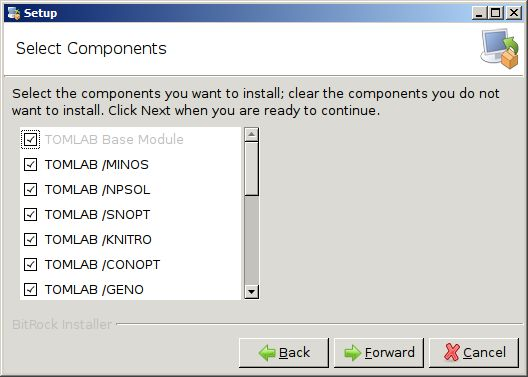
At the Component Selection screen, it is usually safe to leave everything selected. Only deselect packages if you know you need to do so.
Press Forward to proceed.
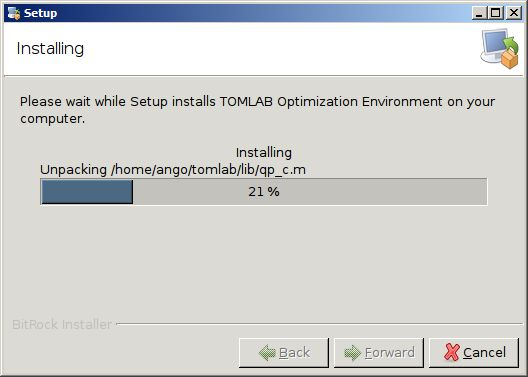
During installation, a progress bar will appear.
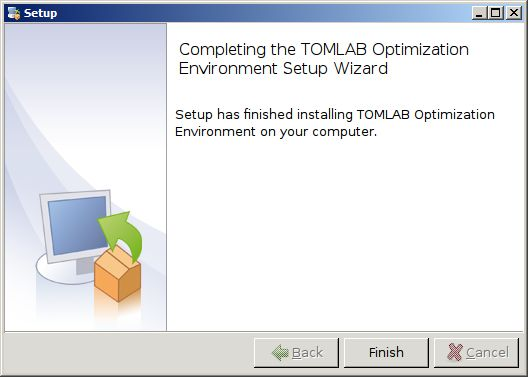
At the final page, simply press the Finish button to exit the installer.
Execute the installer from the shell.
[user@host:~]$ ./tomlab-X-setup.bin --mode text
If you are running the installer as a regular user, a warning may be displayed:
 Warning: Setup is not running with administrative privileges.
 This means TOMLAB will be fully usable only by the current user.
 If this is not desired, please abort the installation and rerun
 it as an Administrator Press [Enter] to continue :
Currently this warning can be ignored since a manual step is still required to make TOMLAB fully usable by anyone.
The TOMLAB license agreement will be displayed - press Enter several times to read the agreement and at the question if you accept the license, press "y" if you accept, or "n" otherwise.
Do you accept this license? [y/n]:
Enter the location where TOMLAB will be installed. Please note that a directory ’tomlab’ will be created in this location, i.e. do not enter a trailing ’tomlab’ dir yourself.
The default location for single user installations is in the $HOME directory.
The default location if installing with super-user privileges is in /opt/tomlab (will show as /opt) in the dialogue.
   Please choose where to install TOMLAB.
   A 'tomlab' directory will be created in this location.
   Installation Directory [/home/user]:
The next questions concern package selection. You can safely leave all packages selected by simply pressing Enter at each prompt.
At the next question, press Y to install TOMLAB:
   Setup is now ready to begin installing TOMLAB Optimization
   Environment on your computer.
   Do you want to continue? [Y/n]: Y
An installation progress bar will be shown during installation. After installation, the installer program will exit.
 ----------------------------------------------------------------
 Please wait while Setup installs TOMLAB Optimization Environment
 on your computer. Installing
 0% ______________ 50% ______________ 100%
 #########################################
 ----------------------------------------------------------------
 Setup has finished installing TOMLAB Optimization Environment on
 your computer.
TOMLAB can be installed without any user interaction at all. To perform an unattended installation, execute the installer binary with the following options:
   [user@host:~]$ [sudo] ./tomlab-X-setup.bin --mode unattended
   --prefix /path/to/installation_dir
The argument to the –prefix option should not include a trailing /tomlab directory - one will be added automatically.
The first step is to save a copy of the license file (and make a backup copy of the old version if needed). Assuming that TOMLAB is installed in /usr/local/matlab7/tomlab execute the follow commands:
   $ cd /usr/local/matlab7/tomlab
   $ mv tomlab.lic ../
Then remove the old version:
   $ cd ..
   $ rm -f -r tomlab
Install the new version as described in section 4.3 and move back the license:
$ mv tomlab.lic ./tomlab